Dashboard
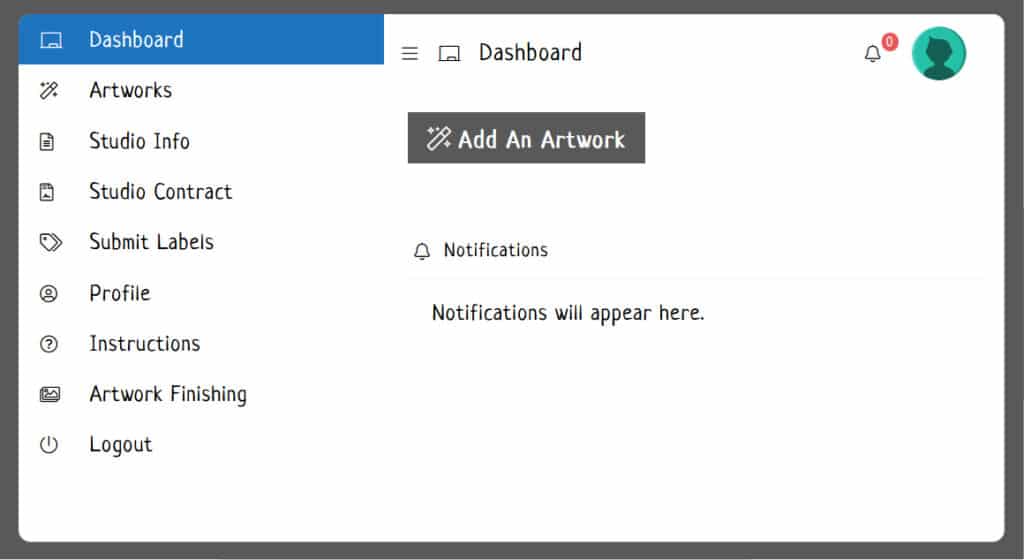
Your dashboard is the hub for submitting your artworks and studio info.
To access your dashboard, click on the My Account link in the Info menu found at the top of each page.
Once you’re on your dashboard, you can expand the left column menu by clicking on the toggle menu icon at the top of your dashboard.

Add Each Artwork Individually
To add an artwork click on the Add Your Artwork button found on your dashboard. Follow the instructions on the screen.
For more info regarding uploading and managing your images please see Managing Your Images.
Artist Statement & Studio Information:
Please keep your studio information up to date. This information is used throughout the website and in the printed catalog.
Your statement should include what you do, and ideas you incorporate into your artwork. This statement will be used for publicity purposes, so it should highlight what you want the public to know about you and your work.
2. Click on the Studio Info link found in the left column menu of your dashboard.
3. Click on the article link that has your name as the title.
4. You can add both your artist statement and a description of your studio. The studio description is optional, but highly recommended.
5. When you are finished, click the Submit button.
6. If you need to make a change to your article just edit it again, and remember to click Submit.
Studio Contract:
Please complete and submit your studio contract. Your application can not be considered until your studio contract is submitted.
Click on the Studio Contract link in the left column menu of your dashboard screen.
If you do not see the links in the left column, click the expansion icon ( as seen in the previous screenshot ) to expand the menu.