
Managing Your Images
ℹ️ Images and Artworks Are Different
On this website, Images and Artworks are not the same thing.
An image is the photograph you take of your artwork.
An artwork is a single finished piece, represented by one image and a title.
When you submit an artwork through the Add An Artwork screen, you attach one image only for that artwork and enter its title.
The system then automatically creates a page for that artwork. All artwork pages are automatically displayed on your studio page.
Important:
If you upload images without adding them as artworks, they will not appear on your studio page. Each image must be added as its own artwork.
When you click the Add an Artwork button, you will see the following screen. Follow the directions step-by-step.
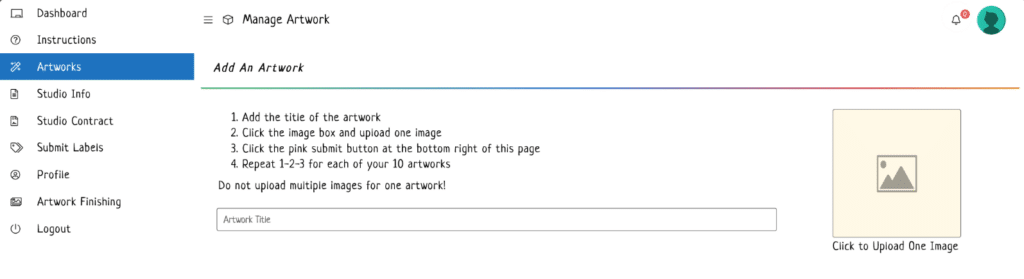
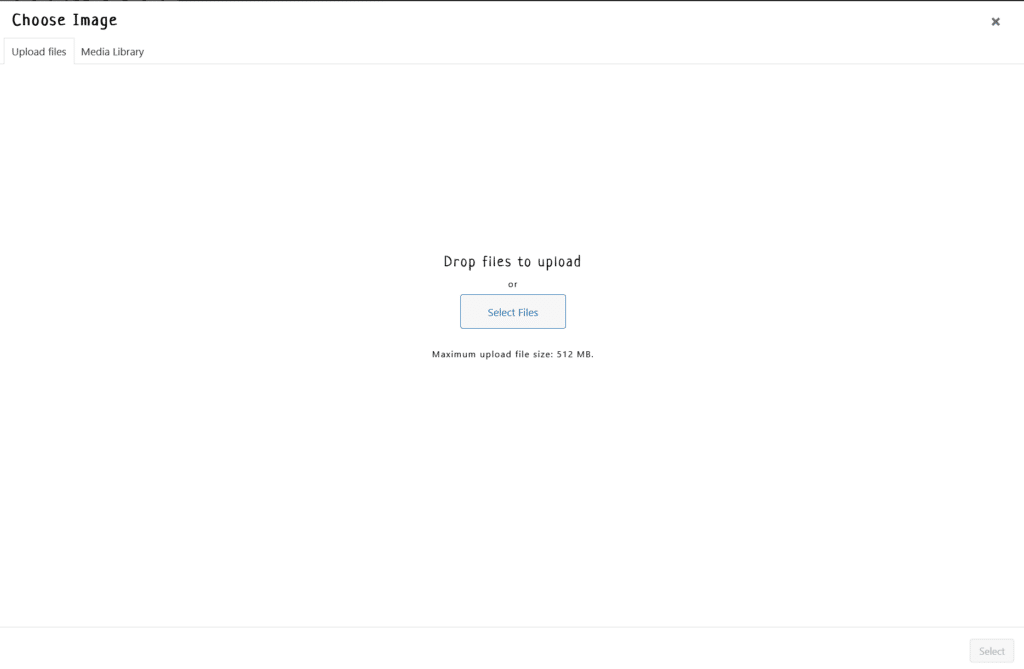
When you click the image box ( highlighted in yellow ) to upload an image you will see the following screen.
You can drag and drop your image onto the screen or you can click the Select Files button and select the file from your computer.
Once you have uploaded an image make sure you have selected the image you want to attach to this artwork. Then click the blue select button at the bottom right of the screen.
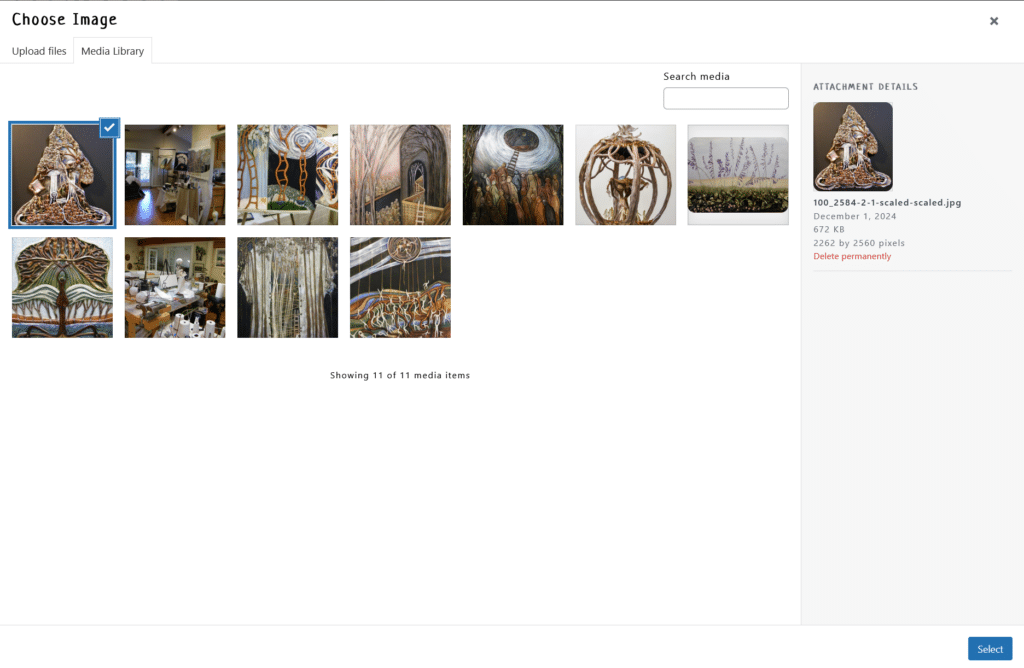
In the preceding image please notice that there are two tabs at the top of the page ( just below the Choose Image heading ). You can switch back and forth between the Upload files screen and the Media Library screen by clicking the tabs.
On the Media Library screen, not only can you select an image, but you can also delete an image. Simply click on the image you want to delete and then click the “Delete permanently” link on the right side of the screen.
⚠️ Caution: This only deletes the image, not the artwork
If you delete an image that you previously attached to an artwork, please be sure to edit that artwork and select a different image, or delete the artwork.